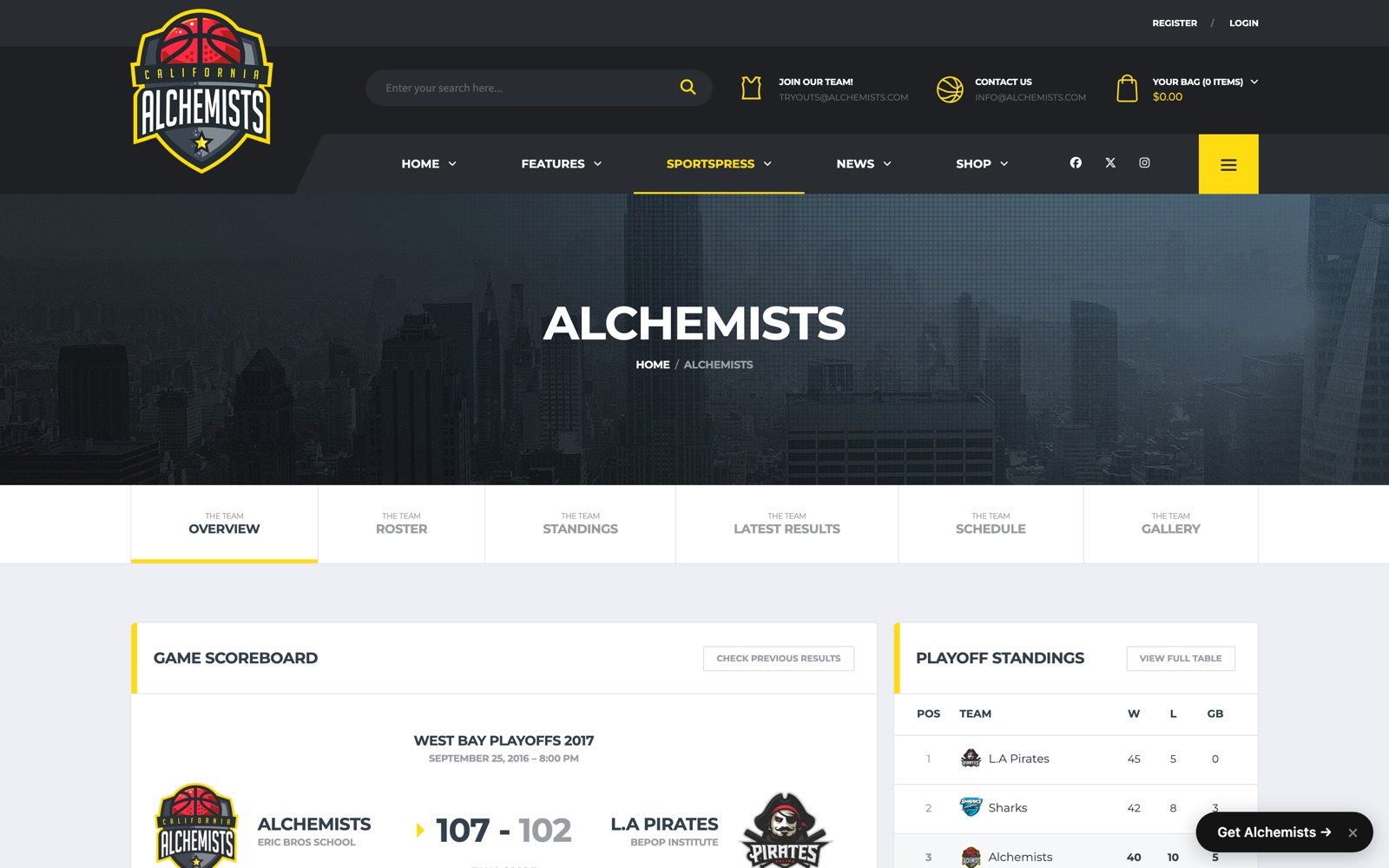
Every few weeks someone asks me how to get a league running in SportsPress: all fixtures on one page, a table that updates itself, and a profile for every player. The plugin does all of it, and the setup takes an afternoon once you know the order. The order is the part nobody writes down, so here it is, step by step, on the basketball demo of my Alchemists theme. The screenshots are that demo, not a mockup, and every number in them was typed into the screens below.
Setup: sport preset, leagues and seasons
Install SportsPress from the WordPress plugin directory. It’s free; the paid Pro version adds modules, but nothing in this tutorial needs it.
Go to SportsPress > Settings > General and pick your sport. I’m using Basketball. The preset fills the Configure screen with the sport’s vocabulary: outcomes Win and Loss, results per quarter plus overtime and total, a box score with PTS, REB, AST and fifteen more columns, and a standings table with W, L, PCT, GB, Home, Road, L10, STRK, PF, PA and DIFF. Leave Configure alone for now. The defaults are what your visitors expect to see, and you can trim columns later.
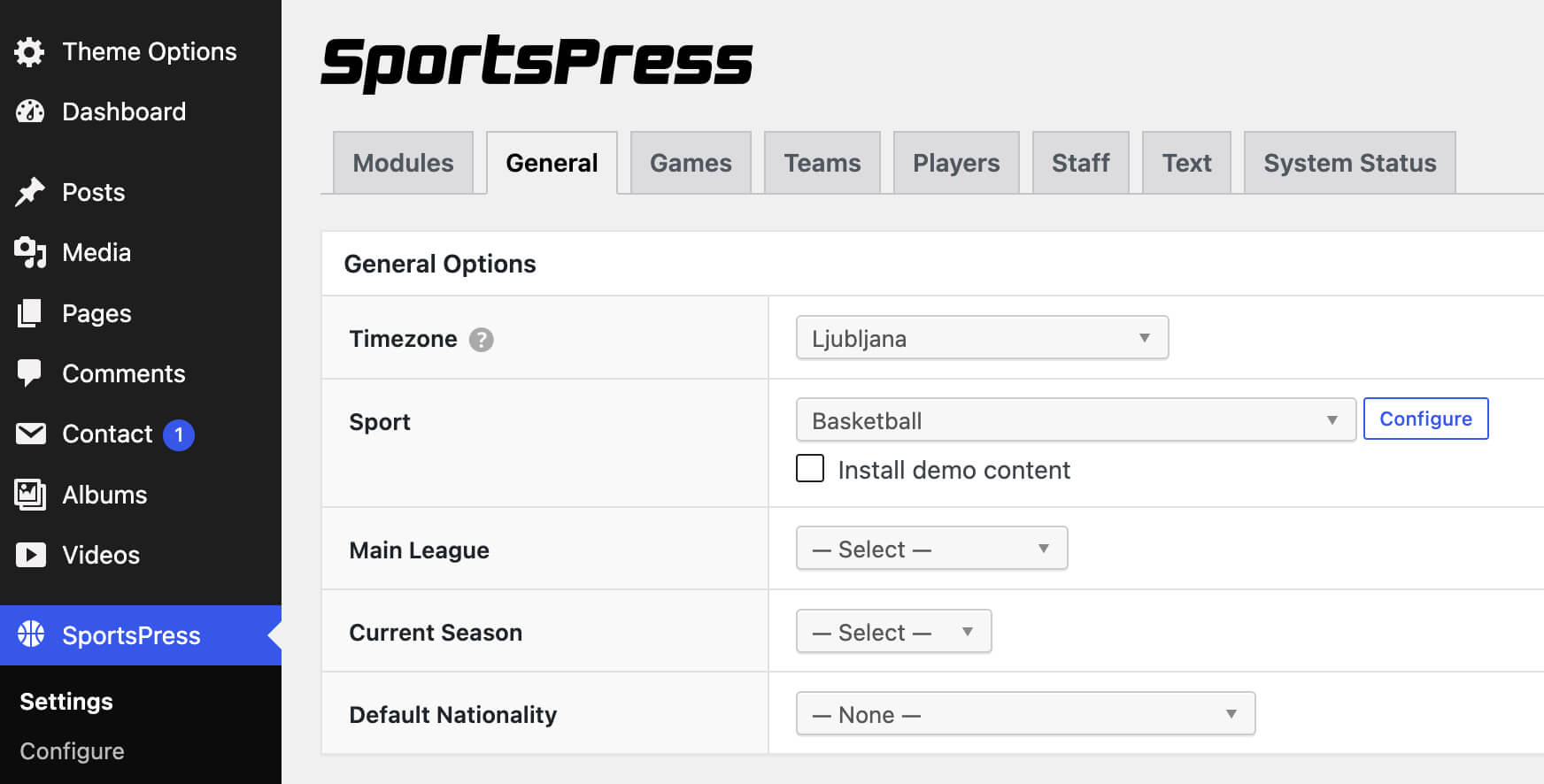
Two things before you enter a single fixture. First, set the timezone under Settings > General in WordPress itself. Event times are stored in it, and if you change it later, every tip-off on the site shifts. Second, create the two terms that hold the whole thing together: SportsPress > Leagues, add “Primary League”; SportsPress > Seasons, add “2026“. You’ll tick these on teams, events, tables and players, and most of the support questions I get about empty tables come down to one of them being missed.
Teams and players
Teams > Add New
The name is the team name, the logo is the featured image (the box is labelled Logo), and the Details box has the abbreviation, a short name, the home venue and, at the top, Leagues and Seasons. Tick both. Repeat for every team in the league; the demo has L.A. Pirates, Sharks, Ocean Kings and the Alchemists.
Players > Add New
Name, photo, and in Details: squad number, nationality, positions, Current Teams, Leagues and Seasons. Metrics is where height and weight go, if you’ve defined them under Configure. The Statistics box stays empty for now. It’s calculated from box scores, so it fills itself once games are played.
You don’t need every player on day one. Add the roster of your own club first and the rest as they appear in box scores.
Fixtures: events and the calendar
Events > Add New
The date and time live in the Event box at the top right, where Publish normally sits. In the Teams box pick the home team first, then the away team; SportsPress builds the title from the two names, so leave the title field empty. In Details, tick the league and season, and set the venue or leave it on Auto, which uses the home team’s venue. Publish. A published event with no results is a fixture.
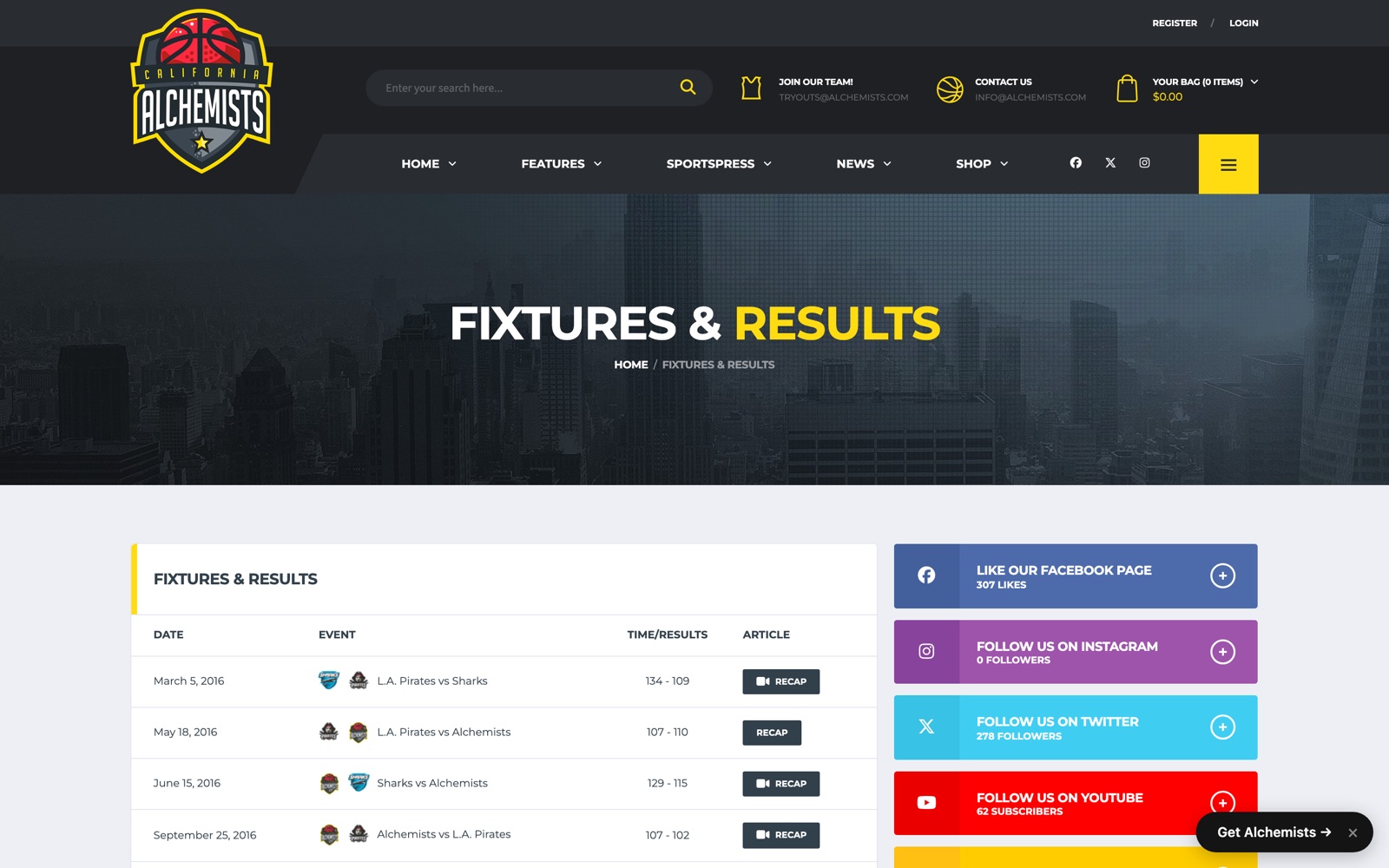
Now the page that lists them. Events > Calendars > Add New. Heading “Fixtures & Results“, tick the league and season, leave Team on All. Date decides what the list shows: every game on one page, only the past or only the upcoming ones, or a rolling window like the past 30 days for a results widget. The Data box lists every event that matches and lets you choose the columns: date, teams, time or result, venue, and Article, which links the game to the recap post you write afterwards.
Publish, and the calendar has its own URL. On the demo it’s /calendar/fixtures-results/. It also has a shortcode, which we’ll get to.
Results and the league table
After the game, open the event. The Results box has a row per team with the quarters, overtime and total. Type the scores and leave Outcome on (Auto): SportsPress works out the win and the loss from the total. Below it, Box Score is the per-player table. Points, rebounds, assists and the rest go in here, and this is the only place player statistics come from. Enter at least points for every player who played, or the profiles will stay blank.
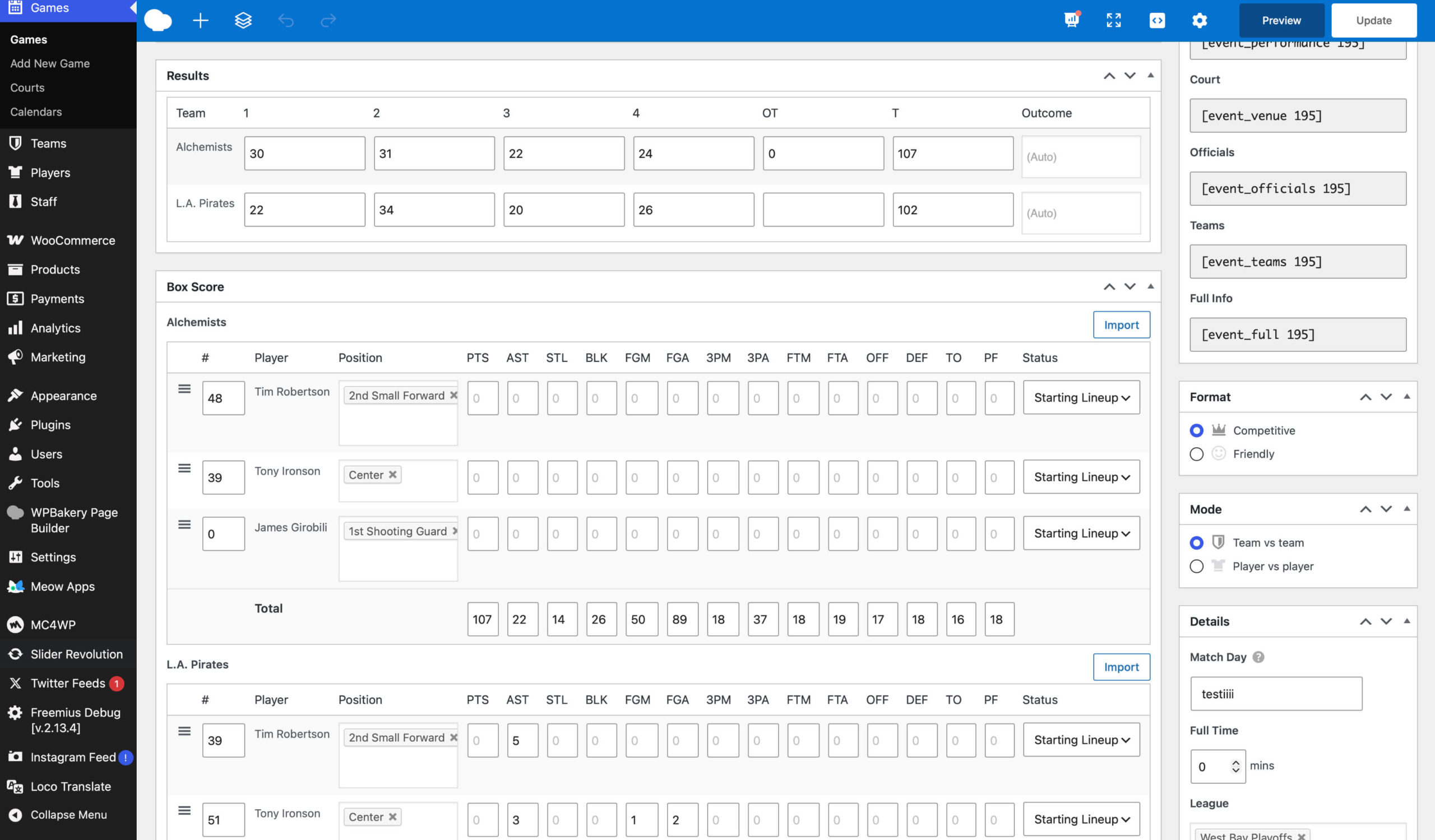
Update the event, and it moves from fixture to result everywhere it’s listed.
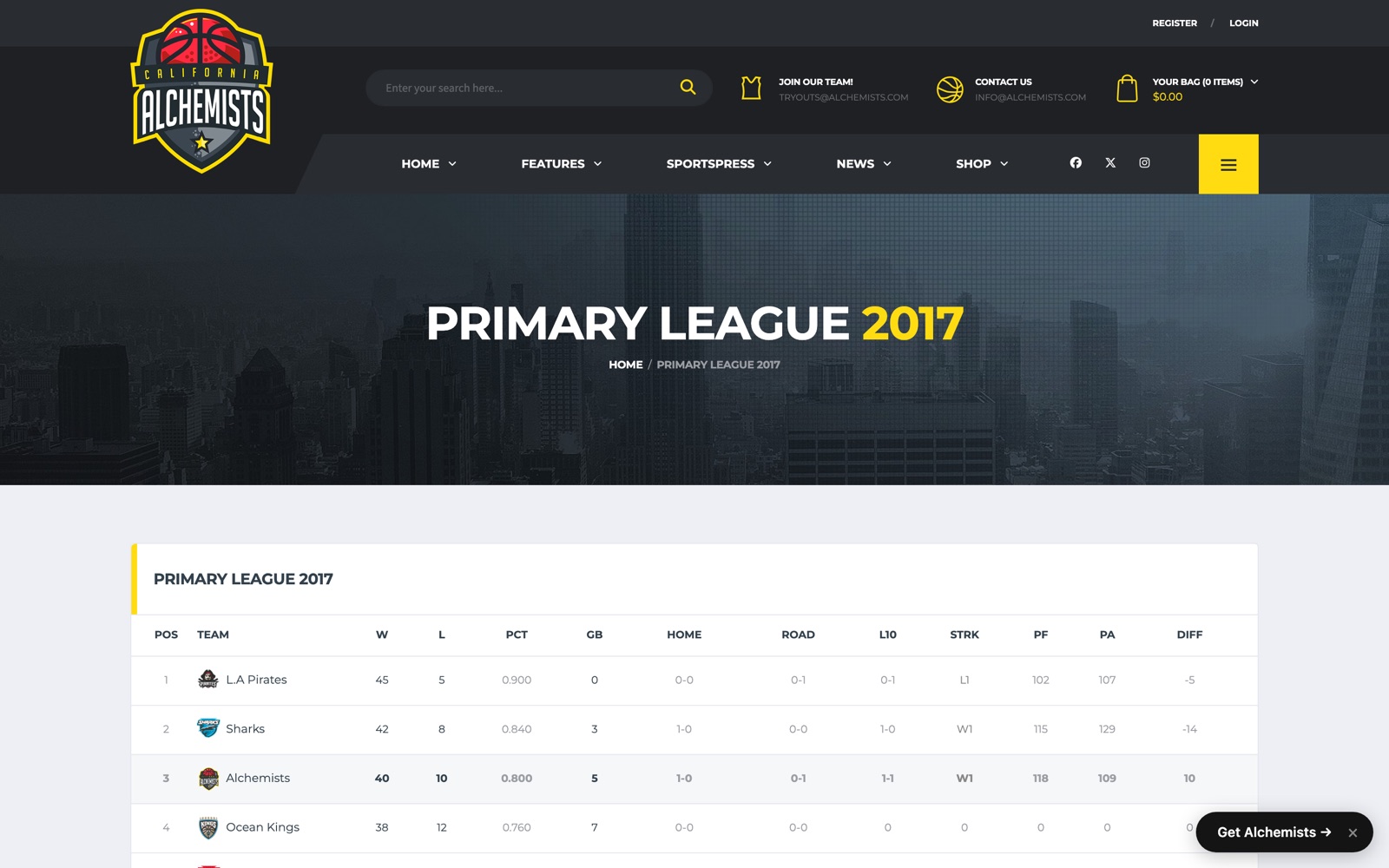
The table: Teams > League Tables > Add New. Heading “Primary League 2026“, tick the league and season. In Details, leave Select on Auto. Auto pulls in every team tagged with that league and season, and every published result those teams have played feeds the numbers. Publish.
There is nothing else to do; the table recalculates on every result you enter, and the columns are the ones the preset set up.
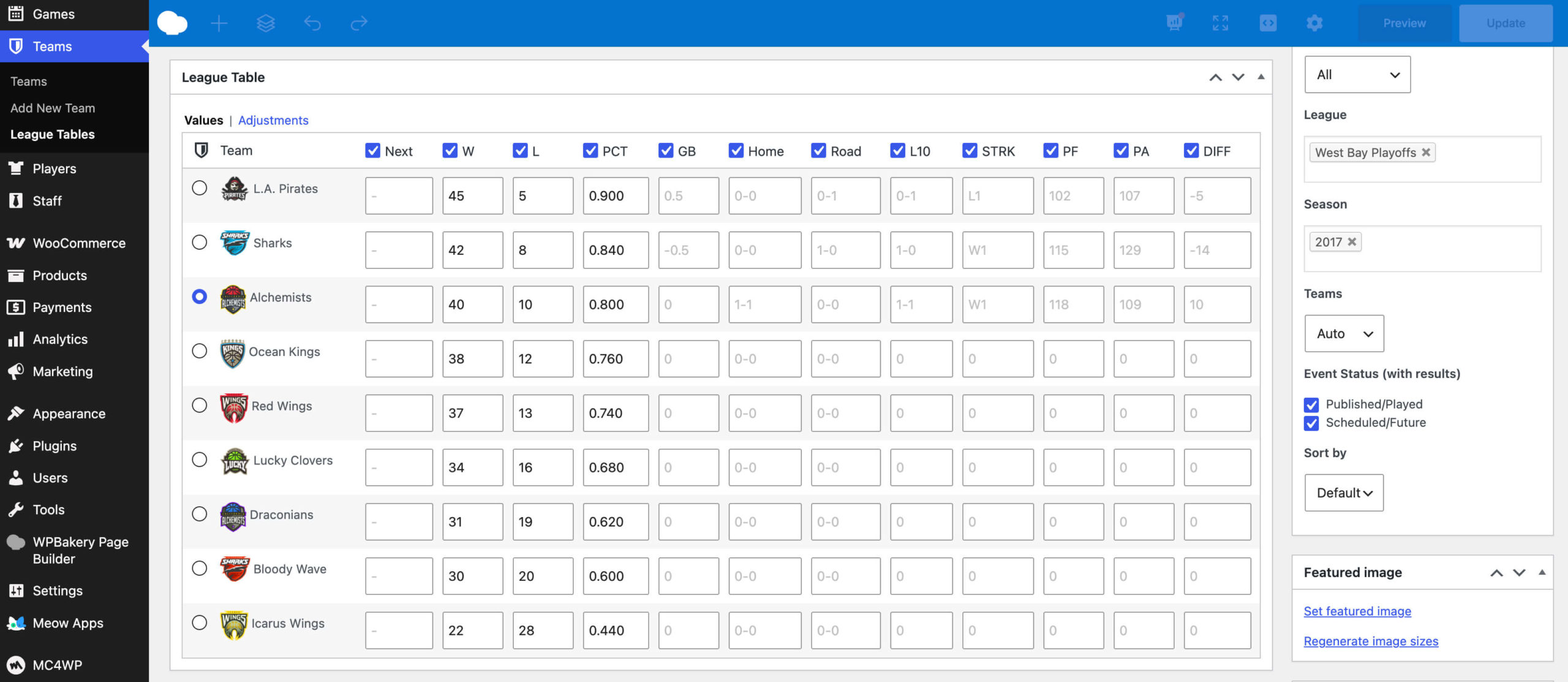
The catch that produces most “my table is empty” emails: Auto reads the league and season tags on the teams, not on the events. If you tagged your events carefully and forgot the teams, you get a heading with no rows. Open each team, tick both terms, save, and the rows appear. Two smaller causes: a fixture only counts once its Results box has numbers, and a season created twice with slightly different names (“2017” on the table, “2017/18” on the events) splits the data. When a table looks wrong, check those three before anything else.
Player profiles
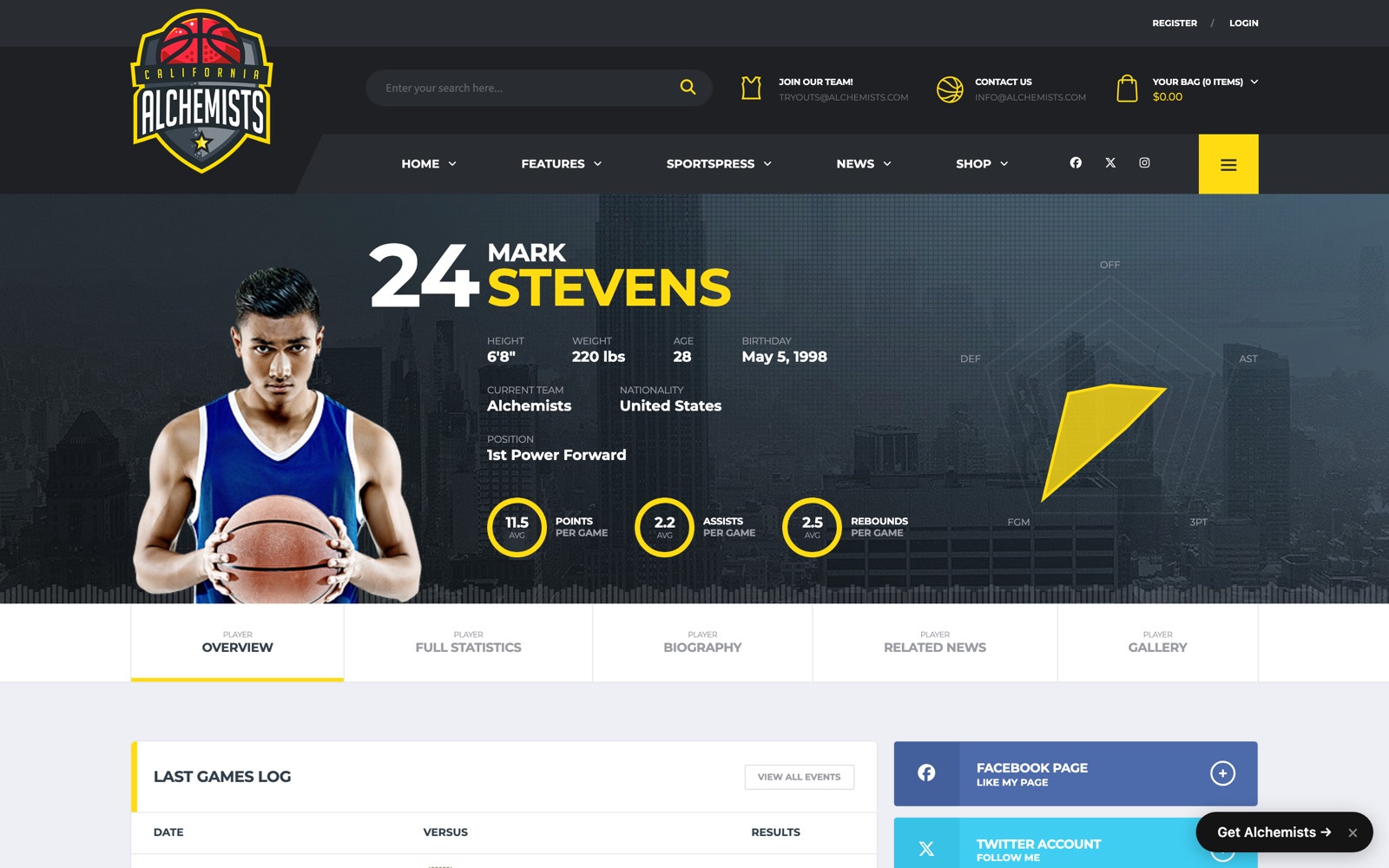
A player’s page assembles itself from what you’ve entered: the Details, the Metrics, a Statistics table per season built from box scores, and a log of the games they played. On the demo, Mark Stevens is number 24, a power forward for the Alchemists, at 11.5 points, 2.2 assists and 2.5 rebounds per game. Nobody typed those averages; they’re the box scores of his games divided by games played. The rings and the radar chart are the theme’s work. SportsPress supplies the numbers.
For rosters and leaderboards, use Players > Player Lists > Add New. A roster is a list filtered by team and sorted by squad number. A top-ten scorers list is the same thing sorted by PTS or PPG, descending, limited to ten. Each list gets its own page and shortcode.
The standings shortcode and friends
Every calendar, table and player list has a Shortcodes box on its edit screen with the ID already filled in. Copy it into any page, post or text widget. The ones you’ll use:
[league_table id="123"]shows the standings.[team_standings]is an alias of the same thing.[event_list id="123"]shows a calendar as a fixtures and results list;[event_calendar id="123"]shows the same calendar as a month grid;[event_blocks id="123"]as cards with logos.[player_list id="123"]shows a roster or a leaderboard.[player_details id="45"]and[player_statistics id="45"]show parts of a profile anywhere.[countdown]counts down to the next fixture.
That covers a league: fixtures on one page, results that flow into standings on their own, a profile for every player with real averages. SportsPress does the data. What it looks like is the theme’s job, and that’s where the demo comes in. Every page in these screenshots is standard SportsPress output styled by Alchemists: team pages with Roster, Standings, Latest Results and Schedule tabs, player pages with the stat rings and the game log, the fixtures list with recap links. On top of that the theme adds its own page-builder elements: an event scoreboard, team leaders, player stat charts, roster cards. If you’re building a club or league site, the basketball demo is at basketball-alc.dan-fisher.dev and the theme is at dan-fisher.dev/themes/alchemists/.