
People decide to book an escape room on their phone, often the same evening they start looking. Your website has three jobs in those few minutes: show the rooms so they can pick one, let them book a time without calling, and answer the questions that would otherwise stop them.
This guide walks through how to set that up with WordPress. I use Escapium, my escape room theme, as the worked example, and every screenshot comes from its live demo. The checklist works with any theme, though.
What an escape room website has to do
- Show each room with the facts people compare: how many players, how long it takes and how hard it is.
- Take bookings online, for a specific room and a specific time.
- Answer the questions people have before they book: age limits, what to bring, whether they will really be locked in.
- Show your address and opening hours on every page.
- Do all of this on a phone as well as it does on a laptop.
Give every room its own page
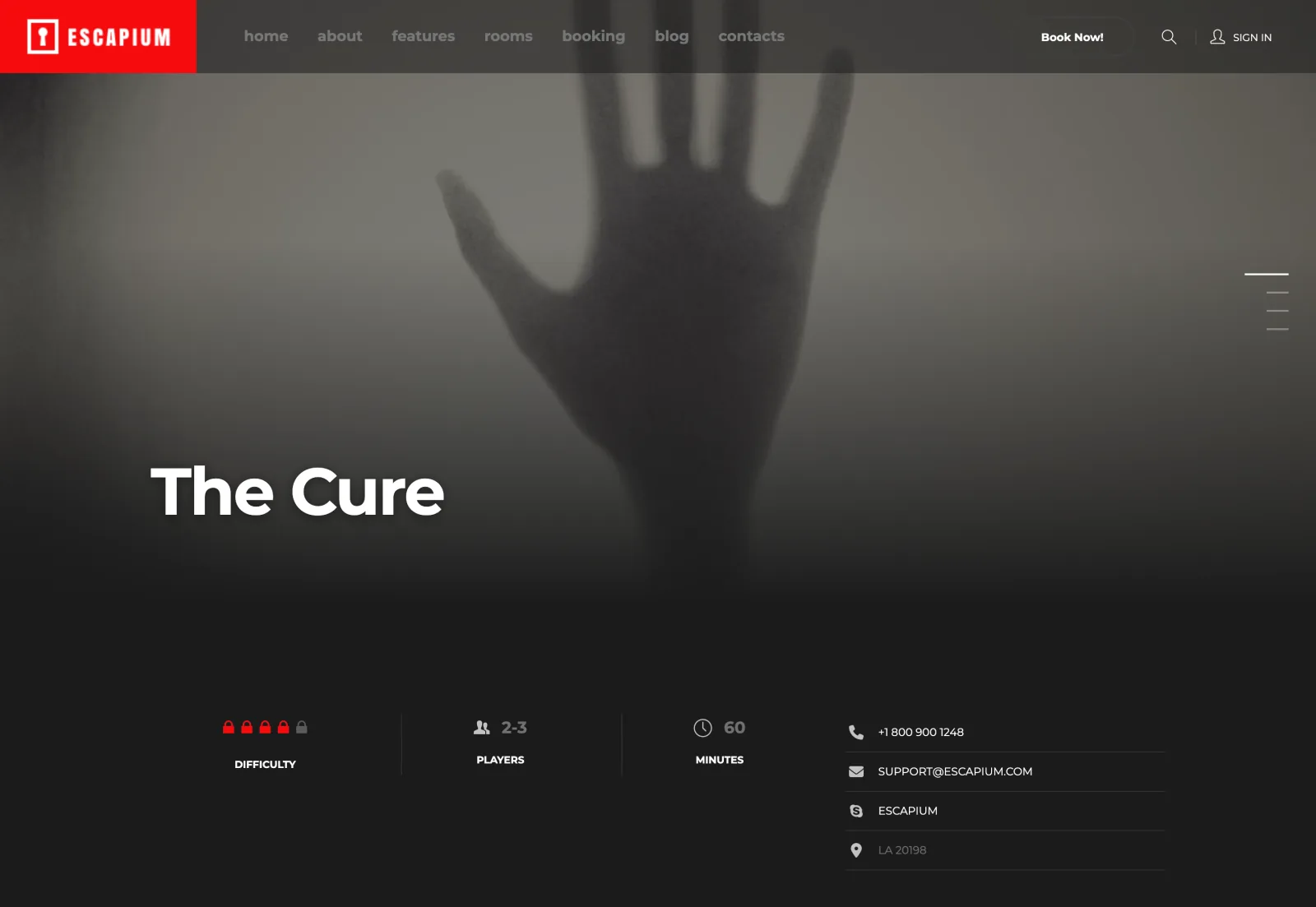
A room page sells one game. It needs a strong photo, the name, and three facts right under it: players, minutes and difficulty. People use those three to rule rooms out, so put them where nobody has to scroll for them.
In Escapium every room is its own entry under Rooms in the dashboard, with fields for the player count, the duration, a difficulty rating from one to five locks, a photo gallery, the address and the contact details. You fill in the fields and the page lays itself out.
For the description, two or three short paragraphs are enough. Open with the story in a sentence or two, say who the room suits (first-timers, families, a group of friends, a team from work), and stop before you give away any puzzles.
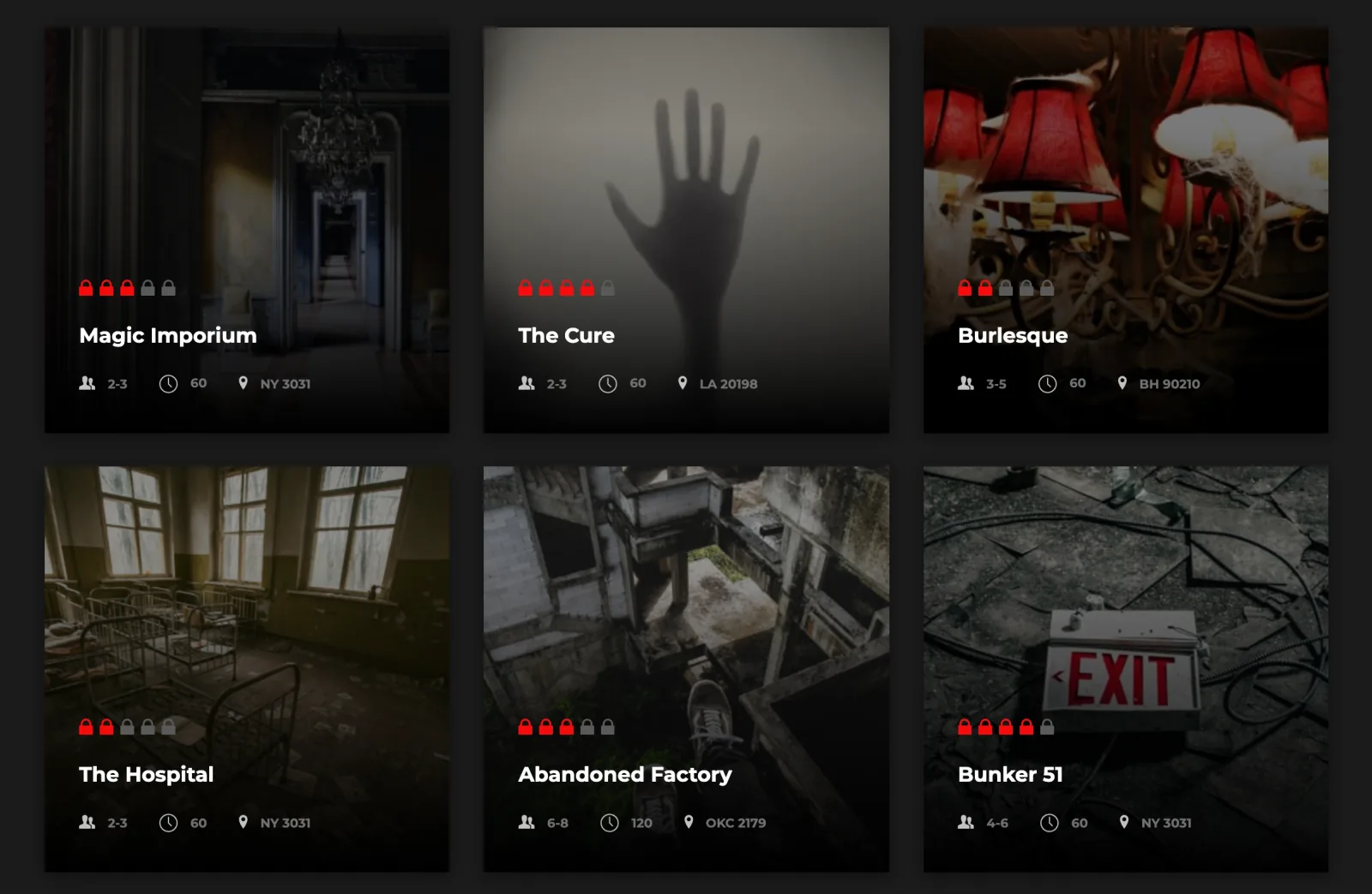
Then list all your rooms on one page so people can compare them side by side. Show the same facts on every card, so a group of six can see at a glance which rooms fit them.
Let people book online
If the only way to book is a phone call, you lose everyone who is browsing at eleven at night. Online booking turns that browsing into a booked slot before they change their mind.
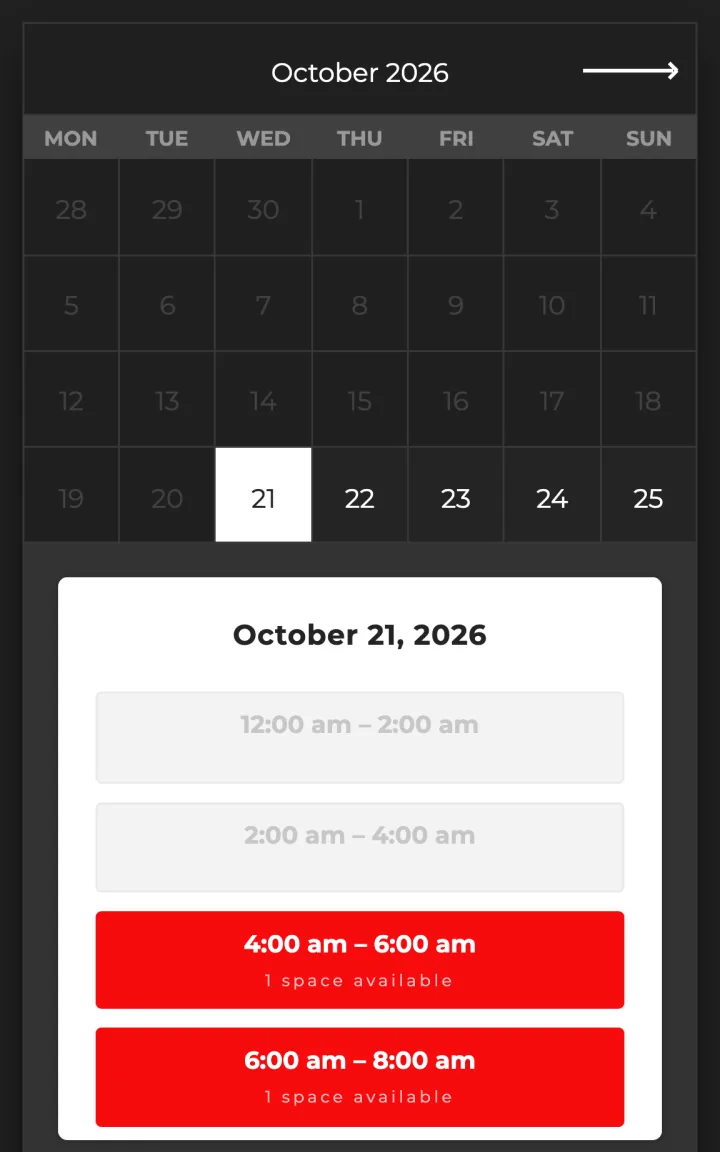
Escapium includes QuickCal, a premium booking calendar plugin, at no extra cost. People pick a day, see the open time slots and book one. You decide the slots and how many groups each slot takes. Each room page has its own Booking Form field, so every room can show its own calendar with its own times.
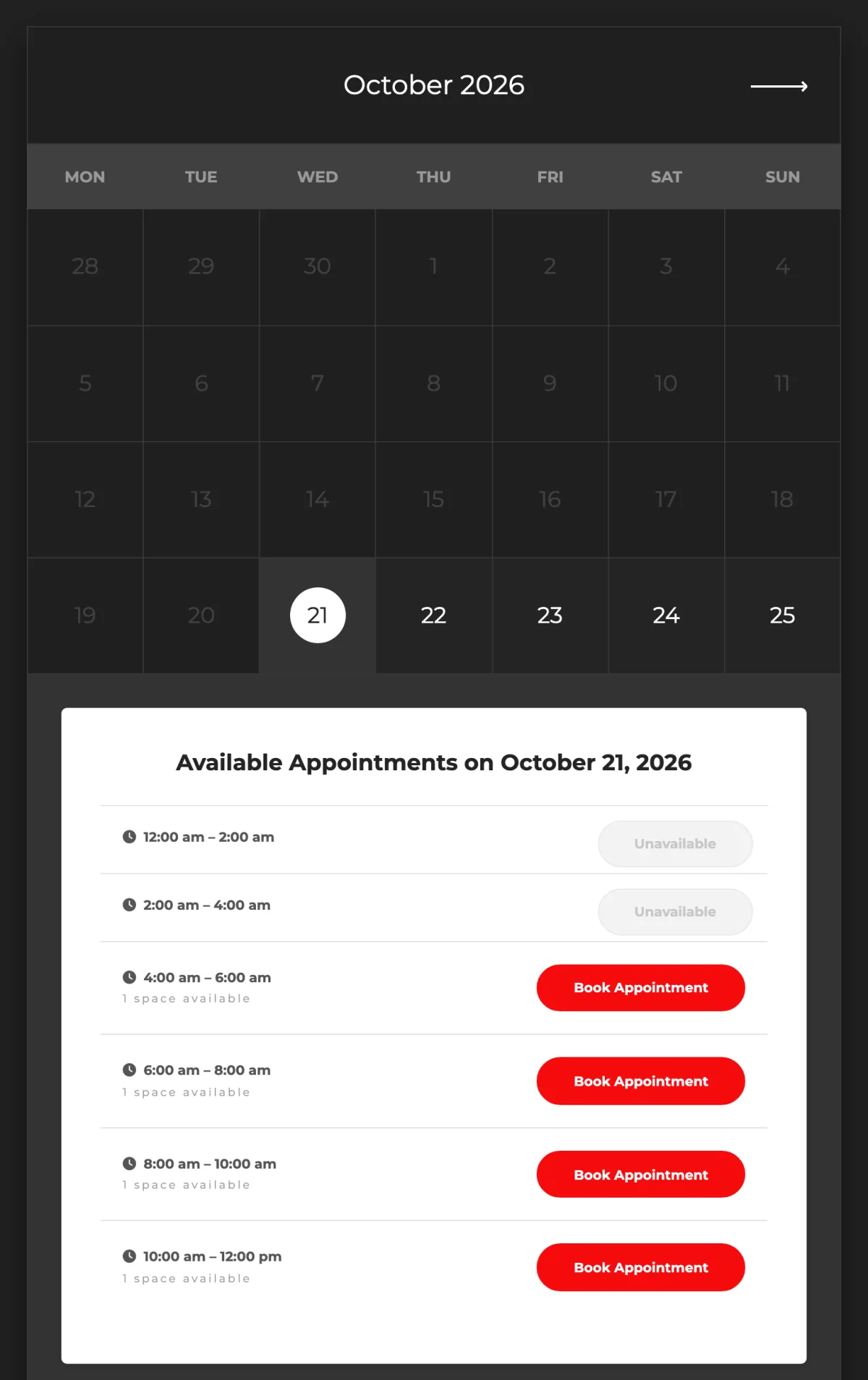
Customers can also sign in and see their bookings, which saves you a few “what time was ours again?” emails. The demo has the sign-in, profile and appointments pages ready.
Already use a booking system such as Bookeo or Resova? You don’t have to switch. Each room page has a booking button that jumps to the room’s calendar by default, and you can point it at your booking system’s page for that room instead.
Whatever you choose, try the whole booking on a phone. Most of your visitors will.
If you have more than one location
There are two common setups, and both work well.
- One site for all locations. Give each room its own address, which shows on its card and its page, and its own calendar. This suits locations that share a brand, prices and booking staff.
- One site per location, for example on its own subdomain. Each location keeps its own rooms, hours, prices and bookings. This suits locations that run on their own, and it is how several escape room businesses using Escapium have set things up.
Answer the questions before people ask
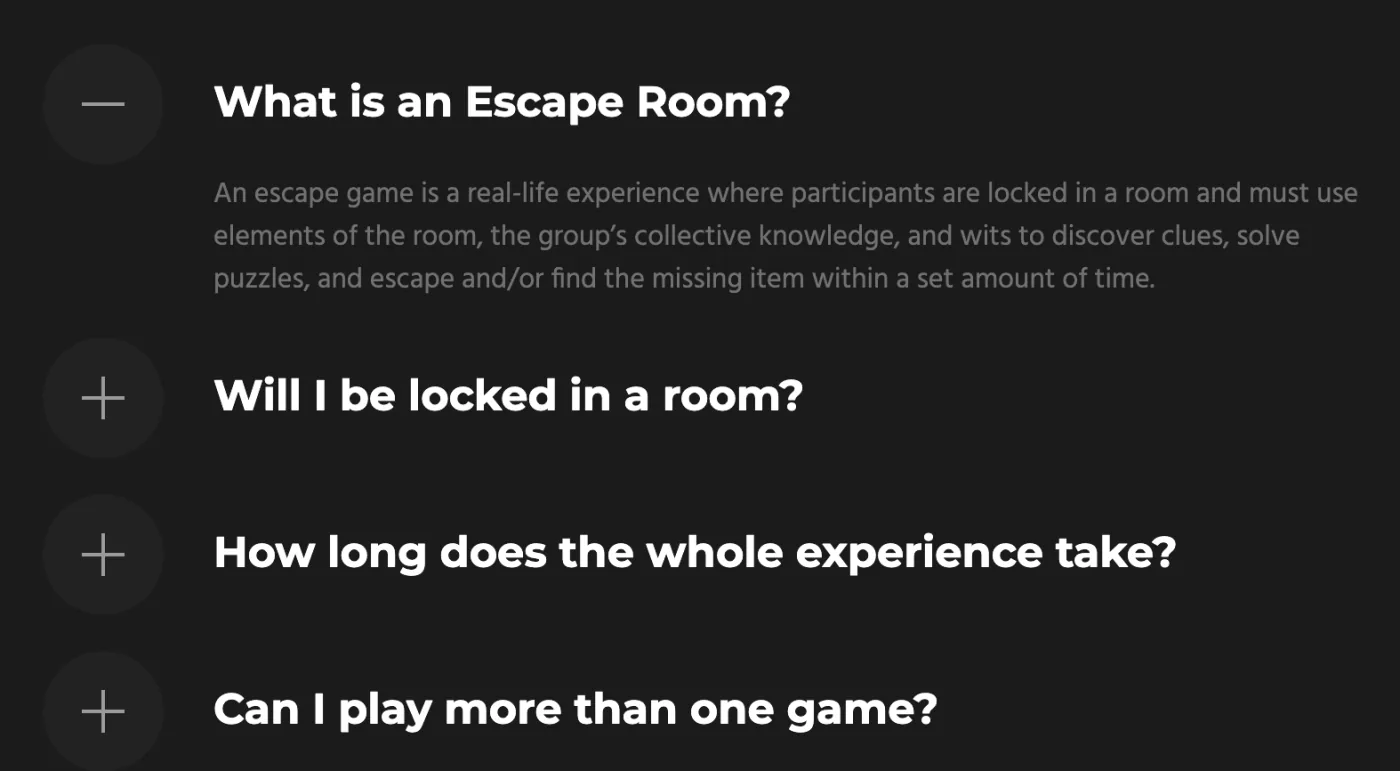
Almost every first-timer asks the same things. Will we really be locked in? How long does it take? Is there an age limit? Do we need to bring anything? Can we play more than one room? What happens if we are late? Put the answers on one FAQ page and link to it from your room pages and your booking page.
If you take groups from companies, give them their own page too: group sizes, what is included and how to ask for a date. Team events fill weekday slots that are otherwise quiet.
Put your address and opening hours on every page
“Where is it?” and “When are you open?” are usually the last two checks before someone books. Don’t hide them on a contact page. A footer with the address, phone, email and opening hours answers both wherever the visitor is.
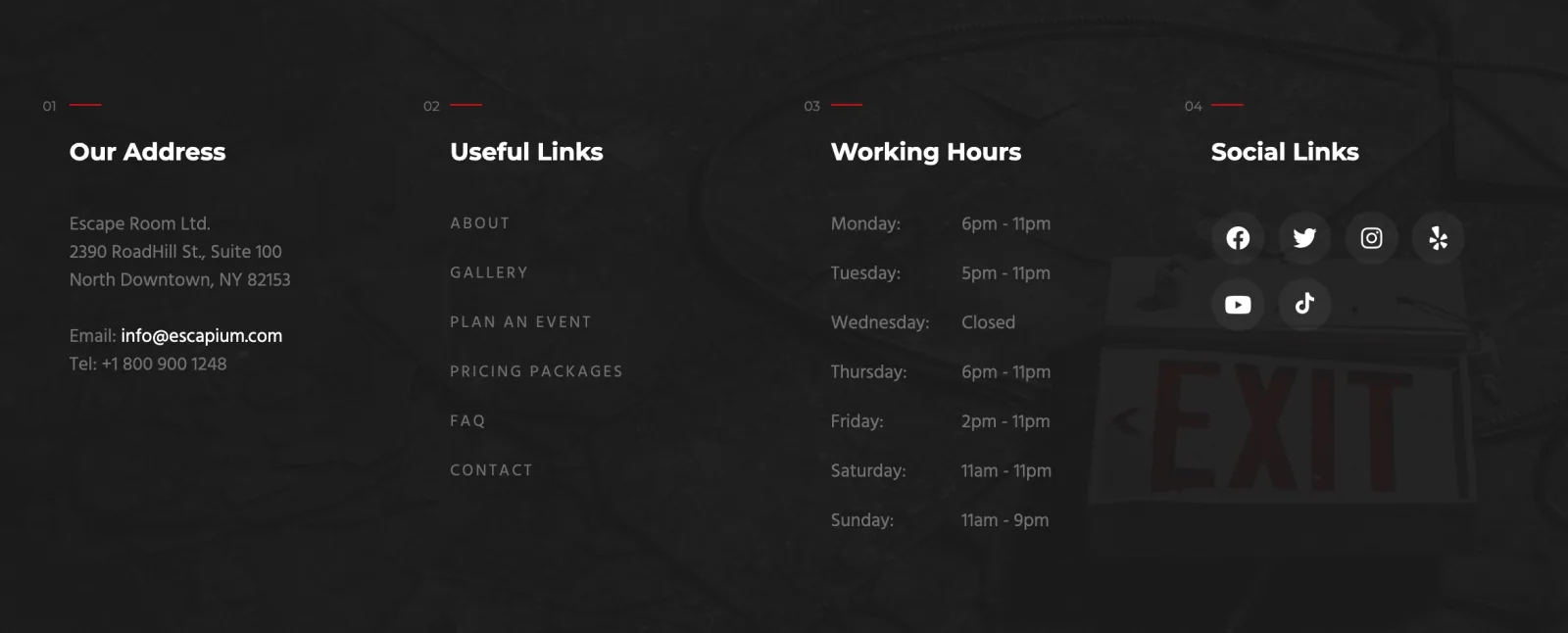
Use exactly the same address and hours in your Google Business Profile. Many people find you on Google Maps first, and matching details there and on your site avoid “the website says we’re open” surprises.
Before you launch
- Make a test booking for every room, from a phone, and check that the confirmation reaches both you and the customer.
- Set your real time slots and the number of groups per slot, and block out holidays.
- Replace demo photos with your own rooms. Real photos of the set sell better than stock images.
- Show your prices, or at least a “from” price per room. People who can’t find a price often leave.
- Write the FAQ answers in your own words, including your cancellation and late-arrival rules.
- Check that your address and hours match your Google Business Profile.
- Compress your photos before you upload them, so room pages load fast on mobile data.
Build it with Escapium
Escapium is the escape room theme I make for WordPress. It comes with room pages that show players, minutes and difficulty, the QuickCal booking calendar, seven layouts for your room list, and FAQ and contact sections, all editable in Elementor. The demo shows every page from this guide.